Select your accessTVB 1176 + LA-2A
One plugin. Two simple ways to make it yours.
You’re getting TVB 1176 + LA-2A for one low price each month.
- One plugin license
- Updates while subscribed
- Cancel anytime
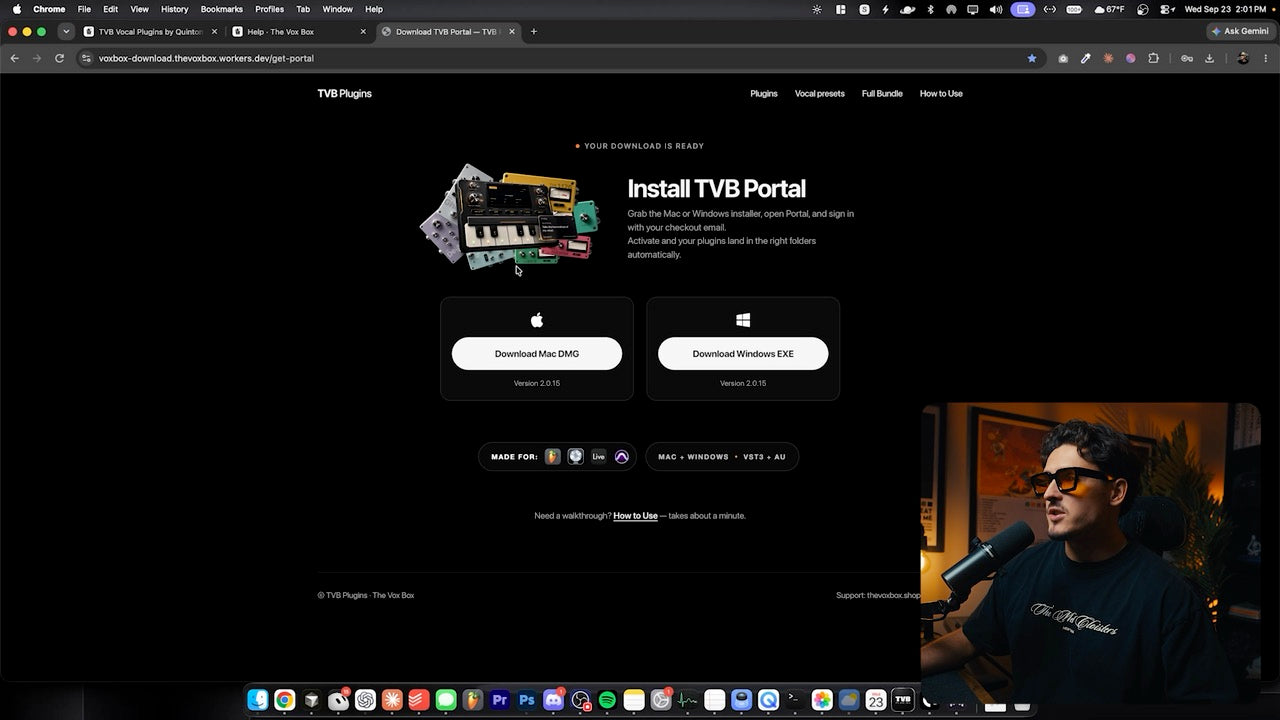
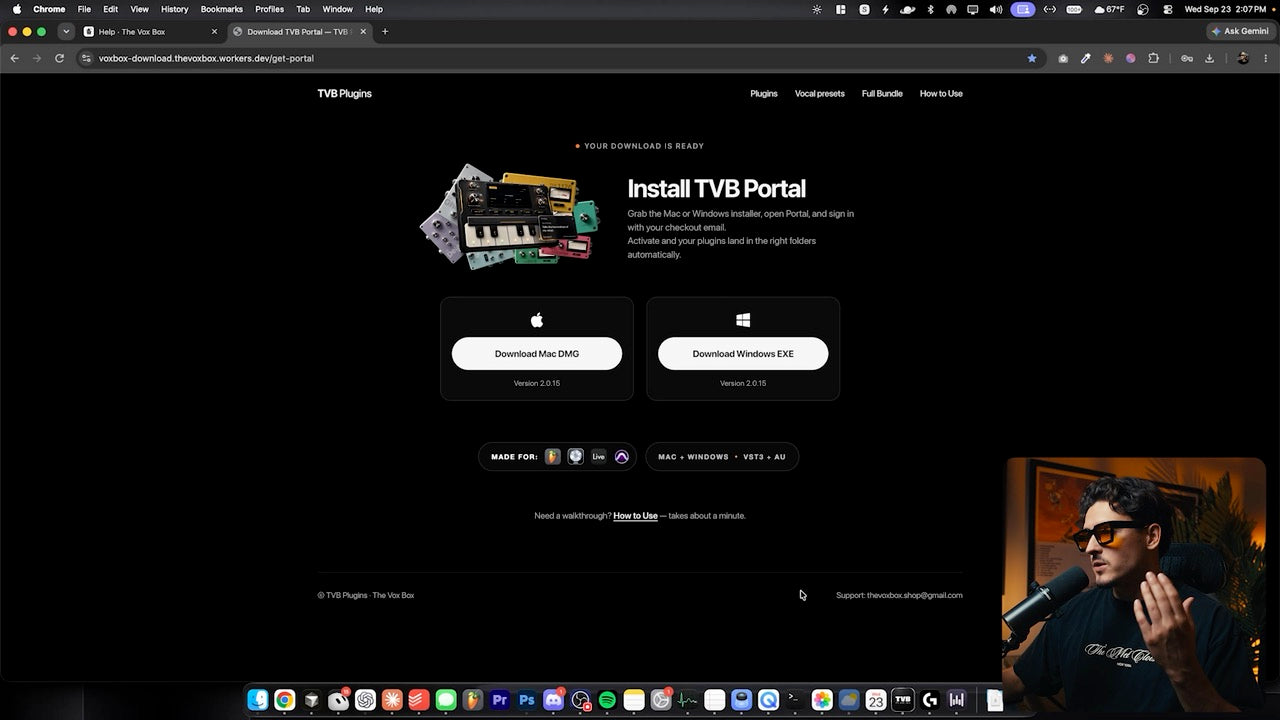
You don't need to find or paste a license key. After you buy, open TVB Portal, sign in with the same email, and hit Activate — your licenses install on that computer automatically.
If Activate fails or a plugin stays locked, use Contact us (footer or the form on this page) with your order email and we'll sort it out.
Delivery is instant. Search your inbox for "The Vox Box" or thevoxbox.shop, then check spam / promotions.
If that doesn't work, use Order lookup or email q@thevoxbox.shop with your order number.
Licenses include a limited seat count (typically 2 computers). Deactivate an old machine from TVB Portal when you can, or Contact us with both machine names and your order number so we can free a seat.
Start with the videos above (How The Plugin Works, How to Install, and Common Questions). Then open TVB Portal → Activate → install plugins, and load them in your DAW as VST3 (and AU on Mac). Still stuck? Contact us with your OS and DAW.
Yes — you can use TVB plugins and presets in your own commercial music and content. Reselling the plugins, presets, or license keys is not allowed.
After Activate, use Portal to install or update VST3/AU builds into the correct system folders. Then rescan plugins in your DAW (or restart Logic for AU). Portal is the supported update path — avoid hand-copying old builds.
Presets: Download now links in your order email, or Order lookup. Plugins / The TVB Rack: install TVB Portal, activate, then install the plugin builds from Portal.
Yes — typical plugin licenses include 2 seats. Activate on each machine through Portal. Need a seat freed? Contact us with the order number.
Active subscriptions and lifetime plugin unlocks receive product updates through Portal. Preset packs keep the files you purchased; Complete Collection / lifetime preset offers follow what your order includes.
A DAW that loads VST3 (and AU on Mac) — FL Studio, Ableton Live, Logic Pro, and others. TVB Portal handles install and licensing on Mac and Windows.
Yes. Portal and the plugin suite ship for both Mac and Windows (VST3 + AU on Mac).
Confirm install finished in Portal, then rescan plugins. On Mac, restart Logic / GarageBand for AU. On Windows, confirm your DAW scans the same VST3 folder Portal used. Still missing one? Contact us with DAW + OS.
The TVB Rack offers monthly and lifetime options. Individual plugins may be monthly or lifetime depending on the product page. Presets are usually one-time downloads unless noted as a subscription add-on.
Yes. If something isn't working or you're not happy, email q@thevoxbox.shop (or use Contact us) and we'll make it right, including a refund when needed. Refunded purchases have their licenses and downloads deactivated. See our refund policy.
Use Contact in the footer (or the form below), or email q@thevoxbox.shop with your order number, OS, and DAW.
Email q@thevoxbox.shop or open the contact form. Include your order number, OS, and DAW when you can.
Two ways to stop a subscription. Cancel stops Shopify billing; your card stays on Shopify.
Open the customer portal to manage or cancel online. Click here.
In the TVB Portal app you downloaded, go to Settings and choose Cancel. That stops Shopify billing; your card stays on Shopify.
One plugin. Two simple ways to make it yours.
You’re getting TVB 1176 + LA-2A for one low price each month.